More ways to create a learning video
For a filmed training video, there is plenty to agree before recording: the storyboard, script, location and who will appear on camera. Editing tools such as Final Cut Pro or DaVinci Resolve handle the production work, but a mistake in the recording may still mean another shoot. Getting the script right early saves work later.
There are now more ways to put a video together without filming every element. You can generate an image in Midjourney, animate it in Kling or Runway, and add a voiceover in ElevenLabs. Within TechSmith’s product range, avatar generation is available through Camtasia Pro or a standalone Audiate subscription—not every Camtasia plan. These options change the production process, but I still start with what the video needs to explain or demonstrate.
Some platforms now bring several of these tasks into one workspace, so there are fewer files to move between apps. Depending on the platform, that might include scripting, visuals, voice, captions or music.
These tools interest me, although many of their features look better suited to marketing than everyday learning design. There are still useful possibilities for training: a short scenario, a visual explanation or a presenter-led introduction. Here I look at seven tools, what they offer and what I would check before using them. This is a quick introduction, not a detailed comparison or a claim that I have tested every feature.
What “All-in-One AI Video” Means in Practice
I use “all-in-one” here as shorthand for several features in one app, not a tool that does everything. Some focus on generating scenes, others on avatar-led videos, and others combine a wider range of production tools. They cover different parts of the workflow and do not all provide every feature listed below.
Depending on the platform, those features can include:
- Text-to-video: Generate animated video clips from typed scripts or prompts.
- Image-to-video: Turn static images into moving video sequences.
- Talking-head avatars: AI-generated human figures or digital characters that can present scripts with lip-sync and voice.
- Voiceover and audio: Generate speech from text, sometimes with a choice of voices and languages.
- Captions and subtitles: Automatically create and embed textual descriptions of audio content.
- Music and sound effects: Add background tracks and sounds where they serve the content.
- Basic video editing: Trim clips, reorder scenes, adjust visuals and audio levels.
For a small learning design team or solo developer, having several useful features in one app can mean less switching between tools and fewer files to move around. You may still need another tool for editing, captions or other finishing work—the useful question is how much of your own workflow the app actually covers.
Seven AI Video Creation Tools at a Glance
Freepik
Freepik started as a popular design platform offering extensive templates and stock assets. It has since integrated AI-driven image, video, and voice tools alongside its existing libraries.
Users can prompt Freepik’s AI video generator with text or upload images to create videos, selecting options such as model style, aspect ratio, and clip length. The platform includes both quick one-click and fully customisable workflows. Freepik’s AI environment is integrated with its stock content, making it convenient to enhance training videos with professional assets.
Where Freepik helps in learning and what to keep an eye on
I would consider Freepik for a short supporting visual or when a project needs both generated clips and stock assets. Having them in the same workspace could save some searching and file handling, provided the available assets and licence fit the project.
Check how many credits the chosen model uses, including retries and later updates. Also check whether the workflow you choose includes editable captions and the voices or languages you need; do not assume that every model or plan offers the same options.
(For details, see [Freepik AI Video Generator](https://jp.freepik.com/ai/docs/video-generator) and [Freepik Pricing](https://www.freepik.com/pricing/27449076).)
Higgsfield
Higgsfield brands itself as an AI-native creative suite tailored for video and image generation. It combines proprietary tools with several external AI models — such as Kling, Veo, and Sora — accessible within a single workspace.
The suite supports cinematic video creation with camera and motion controls, multi-shot scenes, and character consistency across frames. Audio capabilities include voiceover, voice cloning and translation. Higgsfield’s model-selection guide recommends Kling for longer, multi-shot clips with coherent motion, while Veo and Sora offer alternative styles.
Where Higgsfield helps in learning and what to keep an eye on
I would look at Higgsfield for a short scenario where camera movement or continuity between shots matters. Access to several models gives you options to try, while the audio tools may help with narration or translated versions.
Check the cost of each model and how much correction a usable clip needs. Review continuity, pronunciation and captions, and get the necessary permission before cloning a voice. A convincing scene can still show the wrong action or distract from what learners need to notice.
(See [What is Higgsfield?](https://higgsfield.ai/creator-hub/help-center/getting-started/what-is-higgsfield), [Model guide](https://higgsfield.ai/creator-hub/help-center/ai-models/which-ai-model-should-i-use), and [Pricing](https://higgsfield.ai/pricing).)
Kling
Kling is a standalone AI video and image generator. It also features in suites such as Higgsfield, but you can use it independently. Its video upscaler offers a route to 4K output; that is not the same as saying every model generates clips natively at 4K. Check the generation resolution and any separate upscaling step for the model and plan you choose.
It supports image-to-video generation in HD and ultrawide formats, with cinematic controls for narrative flow and motion coherence suited for multi-shot scenarios. Kling’s educational guide highlights its application for personalised digital learning content.
Where Kling helps in learning and what to keep an eye on
I would consider it for short visual scenes that support an explanation or scenario. Controls for motion and continuity may help when a sequence needs to hold together across shots, but I would check that the action is accurate—not just visually convincing.
For training, a realistic-looking clip is not enough. Check details such as the order of actions, equipment and continuity between shots. Include retries and any upscaling in your cost estimate.
(See [Kling API Documentation](https://www.klingai.com/document-api/apiReference/model/imageToVideo) and [Educational video use](https://klingai.com/blog/ai-image-to-video-personalized-education-content).)
Artlist
Artlist is primarily a stock media platform known for music and footage licensing. It has added generative AI video features including text-to-video and talking avatars alongside its existing content.
Users can create avatar-led videos from images and audio with facial animation, voice delivery, and even multilingual dialogue updates. The AI avatars feature models like Fabric 1.0 and HeyGen 4, supporting videos up to three minutes and HD resolutions.
Where Artlist helps in learning and what to keep an eye on
Artlist could be useful when a video needs stock footage, music and a presenter-style segment. I would choose those elements to support the explanation, rather than adding them simply because they are available.
Check that the licence covers how you will distribute the course, and review the avatar’s delivery, pronunciation and captions. Keep an eye on credit use, especially if you expect several rounds of changes.
(See [Artlist AI Toolkit](https://help.artlist.io/hc/en-us/articles/29558520864541-The-AI-Suite-plans-explained) and [AI Avatars Guide](https://new-blog.artlist.io/blog/new-artlist-ai-avatars/).)
Runway
Runway is a full creative suite that combines AI tools for text-to-video, image-to-video, video editing, and audio generation in one platform.
Users can prompt video scenes through descriptive text without needing input images and use one workspace for the entire creative sequence. Pricing uses a credit system covering images, video, and audio generation.
Where Runway helps in learning and what to keep an eye on
Runway is worth exploring when you want to draft a scene and adjust it within the same workspace. For learning content, I would judge the result by whether it makes the explanation clearer, and how much correction it needs before use.
Generating several versions can use more credits than the first draft suggests. Check the cost of a usable result and whether you can make the edits, captions and exports your course requires.
(See [Runway AI Video Generator](https://runway.com/product/ai-video-generator) and [Pricing](https://runway.com/pricing).)
Synthesia
Synthesia is a platform focused on avatar-led video production. It can take prompts, documents, PowerPoint files, or URLs and convert them into structured multi-scene videos with talking heads, voiceovers, and captions.
The workflow allows script editing, avatar selection (stock, custom, or AI-generated), language and voice choice from over 140 languages, and caption customisation. This makes it possible to create personalised training videos without filming or studios.
Where Synthesia helps in learning and what to keep an eye on
I would consider Synthesia for a presenter-led introduction or explanation that may need script changes or versions in different languages. Editing the script and regenerating a scene can avoid organising another recording session.
An avatar is not always the right presenter. For a sensitive topic or a practical skill demonstration, a real person may communicate more effectively. Review translated scripts, pronunciation and captions, and allow time for regeneration and approval—not just the initial draft.
(See [Synthesia AI Video Generator](https://www.synthesia.io/features/ai-video-generator) and [Editor Guide](https://docs.synthesia.io/docs/video-edit-page).)
InVideo AI
InVideo AI is a close fit to the all-in-one AI video theme. It can generate a full video from an idea or prompt by creating scripts, visuals, voiceovers, subtitles, music, and sound effects. Users benefit from combining AI-generated media with stock assets.
Its Magic Box feature supports text-driven editing commands: deleting scenes, changing visuals, tweaking captions or voiceovers. It supports over 50 languages for voice and subtitle generation.
Where InVideo AI helps in learning and what to keep an eye on
This could be useful for turning an outline into a first video draft without assembling every element separately. Text-based editing gives you another way to make changes, but I would still check the script, selected visuals and captions before treating it as finished.
Check that selected footage actually matches the explanation, rather than loosely illustrating a keyword. Review usage rights, narration and caption accuracy, and make sure you can correct the parts that do not work.
(See [InVideo AI Text-to-Video](https://invideo.io/make/text-to-video/) and [Editing with Magic Box](https://invideo.io/make/slideshow-maker/).)
What to check before choosing a tool
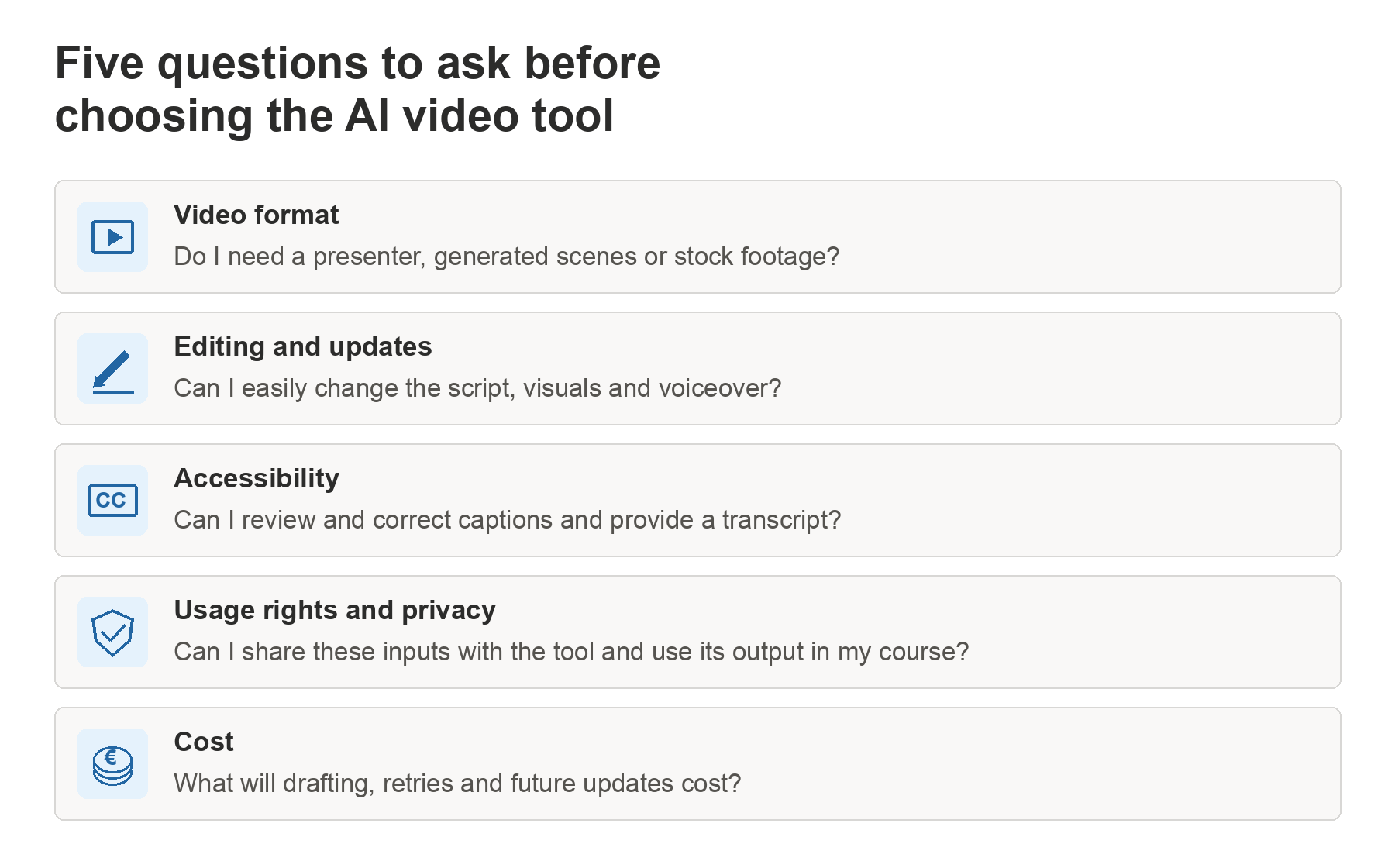
I would start with the video you need to make, not the longest feature list:
- Content style: Do you mainly create talking-head videos, b-roll or motion graphics, or a blend? For avatar-led presentations, Synthesia or Artlist stand out. For cinematic or motion-heavy visuals, Kling or Higgsfield might be better.
- Stock assets: If you frequently use music, footage, and templates alongside AI video, platforms like Freepik and Artlist might cover more ground in one place.
- Usage rights and privacy: Check both what you upload and what you publish. Confirm that you have permission to share client documents, learner data, photographs or voice recordings with the tool, and check how the provider stores them, how long it retains them and whether it uses them for model training. Where personal data is involved, check consent or another appropriate lawful basis and your client’s data protection requirements. Separately, confirm that the licences cover your intended use of generated content, stock assets and voices in learner-facing materials.
- Accessibility: Check that you can correct captions and provide a transcript. Where the visuals carry information that is not explained in the narration, plan how to make that information accessible too. Translation and multilingual voices can help with language access, but they do not replace accessibility checks.
- Budget and scale: Credit- or usage-based pricing can vary widely depending on model choice, resolution, and video length. For repeated or large-scale training updates, consider predictability of costs.
FAQs
Can these AI video tools automatically update training videos when I change the source script?
Do not assume that changing a source document will update a published video. Check whether the tool imports changes, requires you to edit and regenerate the video, or creates a new version. Also check whether you need to replace the video in your LMS after approving the update.
Are AI video tools suitable for all types of learning content?
They are worth considering for explanations, introductions and short scenarios. A generated video is not a substitute for learners practising a skill, and an avatar may not be the best choice when tone, trust or a real demonstration matters.
How accurate and accessible are AI-generated captions and voiceovers?
Review captions against the audio, including names, technical terms, timing and relevant sounds. Listen for pronunciation errors in the voiceover and check that learners can access a transcript where needed. Automated output alone does not establish accessibility compliance.
Do all these tools provide multilingual support?
Many do offer multiple languages for voice and captions (e.g., Synthesia supports over 140 languages), but coverage and quality differ. Check the specifications before choosing.
Are these AI video tools cost-effective for frequent updates?
Credit-based pricing models mean costs can rise with longer videos or multiple iterations. Consider your volume and budget carefully, and use trial or free plans to estimate expenses.
Try a realistic sample first
Before committing, test one short video based on a real training need, using material you are permitted to upload. Check the explanation, visuals, captions, editing effort and total cost—including retries. That will tell you more about whether the tool fits your work than a polished demo.
References
- AI Avatar Generator — Camtasia and Audiate
- AI Video Upscaler to Enhance Videos to 4K — Kling
- Video Generator | Freepik Docs
- Pricing plans | Freepik
- What is Higgsfield?
- Which AI model should I use?
- Pricing plans — Higgsfield AI Video & Image Generator
- Image to Video | Kling AI API Documentation
- How to Create Personalised Educational Videos with Kling AI
- What Plans Are Available? – Artlist Help Centre
- AI Avatars on Artlist: Creator Guide
- AI Video Generator – Runway
- AI Image and Video Pricing from $12/month – Runway
- How do credits work? – Runway
- AI Video Generator – Create AI Videos for Free – Synthesia
- Mastering the Synthesia Editor
- Synthesia Pricing – Compare Free and Paid Plans
- Text to video with AI – generate, edit, publish! – InVideo AI
- Free Slideshow Maker – invideo AI
- Subscriptions and Refunds — Billing, Credits & Payments – InVideo AI